Linux Remount Feature
- 1. Background
Attention: This feature is only supported since Ventoy-1.1.01.
After boot into a Linux ISO from Ventoy, it will report error when we try to mount the partition where the ISO file located.
- 2. Solution
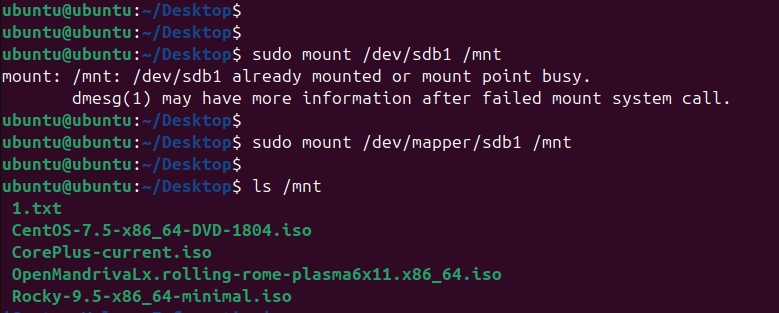
Very simple, assume that ISO file is in /dev/XXX, then mount /dev/mapper/XXX.
For example, ISO file is in /dev/sdb1, then mount /dev/mapper/sdb1 as follows:
- 3. No XXX file in /dev/mapper
If there is no file in /dev/mapper directory in your system, you can run sudo udevadm trigger cmd in the terminal and then retry.
If there is still no file after you run the cmd, please use /dev/dm-N as follows or create manually.
- 4. Use /dev/dm-N
If there is no file in /dev/mapper directory in your system, then you can use /dev/dm-N instead.
For example, /dev/dm-1, /dev/dm-2 ...
Actually, the file in /dev/mapper directory is a soft link which point to /dev/dm-N as follows:
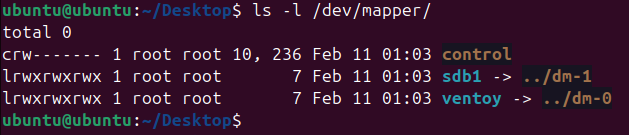
Here you only need to confirm the value of N, that is to say you should use /dev/dm-1 or /dev/dm-2 or ...
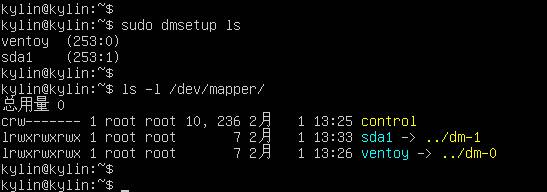
You can use dmsetup ls cmd to confirm as follows (The number after the colon corresponds to N):

For example here sdb1 corresponds to 252:1, the number after the colon is 1 which means /dev/dm-1.
Of course, you can also create a soft link in the /dev/mapper directory by yourself.
- 5. Manual Create
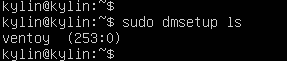
If it does not show the correct device when you run dmsetup ls as above, you can create it by yourself with any one of the following two methods.
- 5.1 Cmd
As follows. (Attention: here sdb1 is just an example, you must replace it with the ISO partition device name in your environment such as sdc1/sde1 ...)
a=sdb1; echo 0 $(cat /sys/class/block/$a/size) linear /dev/$a 0 | sudo dmsetup create $a
- 5.2 Script (Supported since 1.1.11)
There is a create_ventoy_iso_part_dm.sh script in the 32MB VTOYEFI partition, just run it.
1. Mount VTOYEFI partition. For example sudo mount /dev/sdb2 /mnt
2. sudo sh /mnt/tool/create_ventoy_iso_part_dm.sh
3. sudo umount /mnt
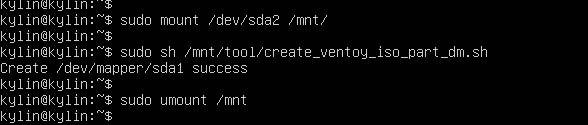
After that you can see the device with dmsetup ls and in /dev/mapper/